Introduction: Editing Tools in 2026
A research-based and first-hand guide to 15 popular tools for video editing, image editing, design, screen recording, audio, digital art, and vector graphics.
Editorial promise: This article separates personal experience from research. I have personally used InShot, KineMaster, PicsArt, Canva, and VIMAGE. The other tools are discussed from researched information rather than pretending to have first-hand experience.
1. InShot: First-hand Experience + Official Research
I have used InShot for many of my own edits, including dual-editing reels and videos connected with my TheTejProjects game-development content. It became one of my favourite editing applications mainly because it feels simple and approachable.
For me, the biggest advantage is the environment itself. I can understand the basic workflow quickly instead of spending a long time searching through complicated menus. That makes InShot particularly useful when I want to finish a short-form edit efficiently.
Before settling on InShot, I used KineMaster heavily. At one stage I found KineMaster's watermark and paid-feature structure inconvenient for my workflow, and my phone was not ideal for taking on heavier editing workloads. Moving towards InShot gave me a simpler workflow that suited me better.
I have also experimented with unofficial modified versions of editing applications. That experience is separate from my judgement of the official products. Modified builds can behave differently and may introduce redirects, pop-ups, broken exports, or security and privacy uncertainty.
Today I prefer the official paid version of InShot. I tested modified builds to understand how they behaved, but the unofficial experience did not solve every problem and introduced its own issues. For my actual work, the official version is the one I trust and use.
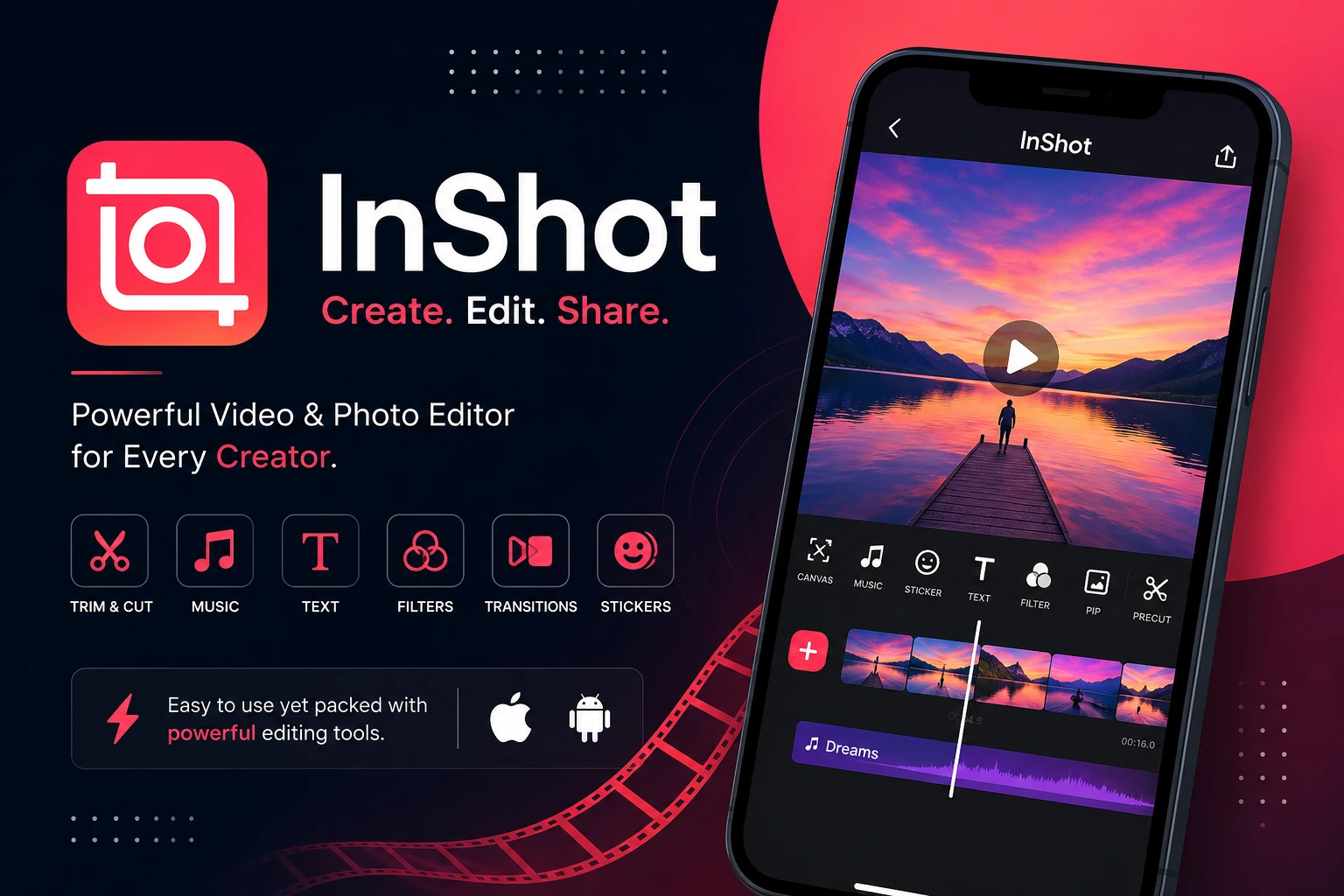
My Verdict: InShot is my personal choice when ease of use is the priority. It is especially suitable for quick mobile editing, reels, and creators who want a straightforward workflow.
2. KineMaster: First-hand Experience
I have used KineMaster in several forms: the official free version, a paid version and, during my experimentation, an unofficial modified build. I therefore separate my observations about the editing workflow from my experience with unofficial versions.
KineMaster has a strong mobile editing workflow. I particularly liked its large library of transitions and effects, animations, fonts, chroma key, and layer-based editing. The layer system is useful when a project needs several visual elements to be combined rather than simply trimming clips.
I consider KineMaster an all-rounder for beginner and intermediate mobile editing. It gives a creator more control than a very basic editor while remaining a phone-first workflow.
The interface can take some time to understand. I personally did not find that a serious problem because I used the application extensively, but a new user may need a little practice. The current official feature documentation also lists multi-layer editing, keyframes, colour grading, chroma key, blending modes, audio tools, and export options up to 4K/60fps, subject to device and configuration.
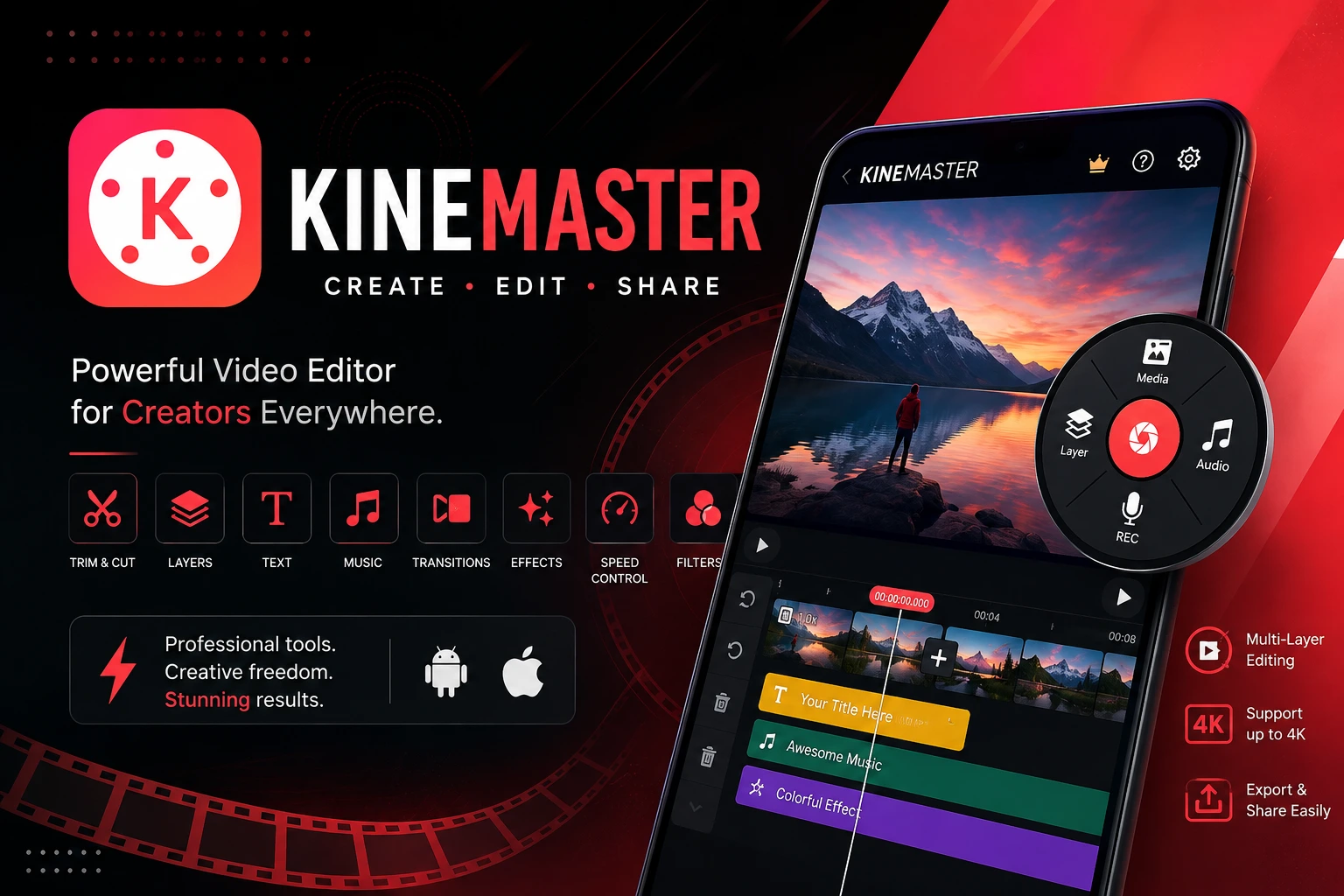
My Verdict: KineMaster is a strong choice for users who want deeper mobile editing control without immediately moving to a professional desktop editor.
3. PicsArt: First-hand Experience
PicsArt is the tool I associate most strongly with creative image editing. One feature I particularly liked was background removal because it makes a task that can otherwise require manual selection much easier.
I also found the large collection of filters and effects useful. It gives beginners a lot of room to experiment with an image without requiring them to understand a professional desktop graphics workflow immediately.
For a user who wants a simple interface but still wants creative control, PicsArt can be a very practical option. It is useful for social graphics, edited photographs, cut-outs, and visually enhanced images. The official editor currently highlights AI-powered editing, background removal, perspective correction, filters, and effects.
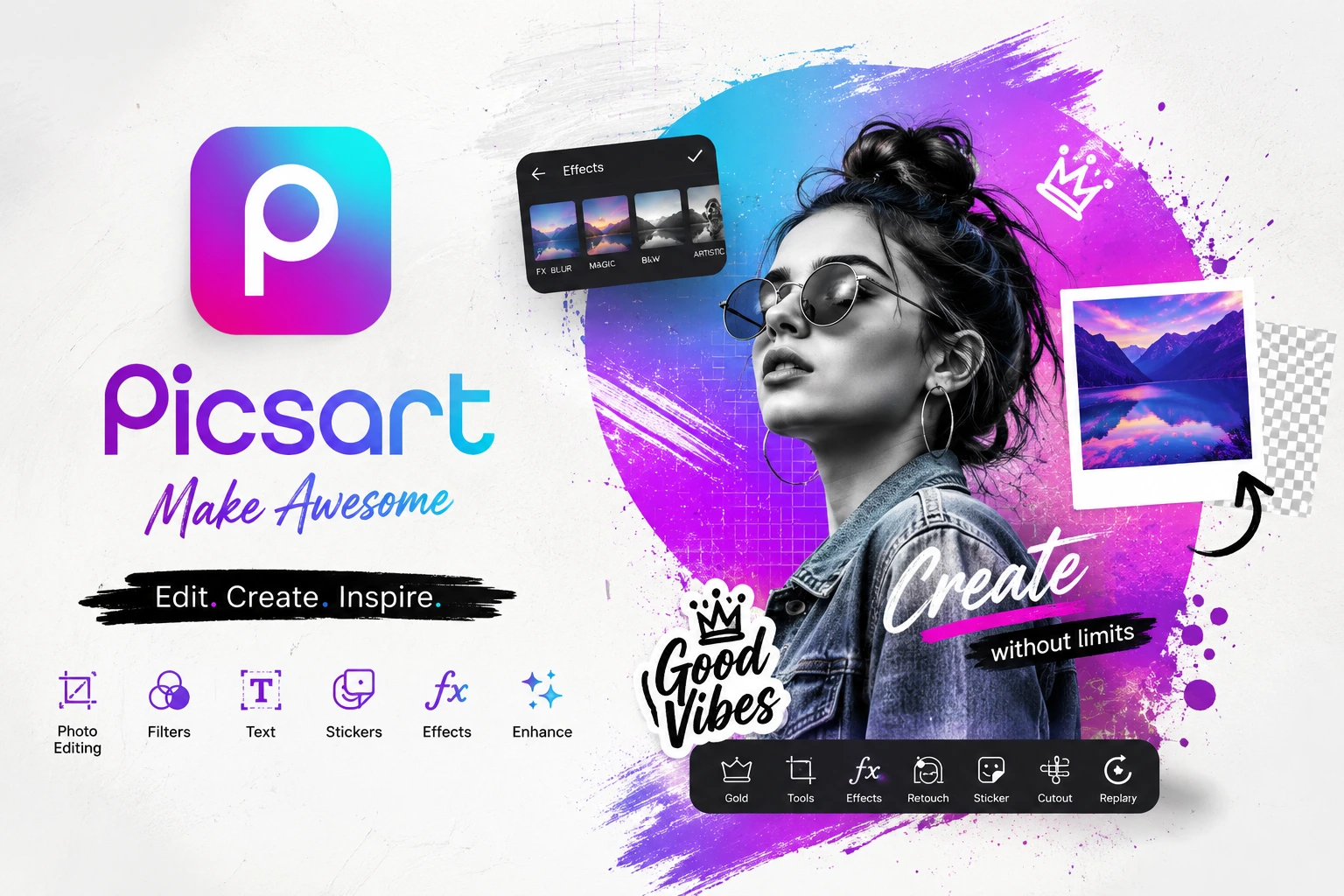
My Verdict: PicsArt is a good beginner-friendly creative image editor, especially when quick visual changes and effects matter.
4. Canva: First-hand Experience + Research
I have been using Canva since around 2016. There was a period when I stopped using it while exploring other applications, but I eventually returned to it and found that it still fitted my workflow extremely well.
What I like most is how quickly I can turn an idea into a polished visual. I regularly find Canva easier for my workflow than starting a presentation from a blank traditional presentation editor. That is my personal preference, but it is a major reason I continue using it.
I use Canva for thumbnails, presentations, and other visual material. Its templates are particularly useful because I only need to replace text, images, and other elements rather than designing every part from scratch.
Canva's official resources currently highlight templates, drag-and-drop editing, presentations, videos, websites, social graphics, collaboration, animations, and exports such as PowerPoint, PDF, and video.
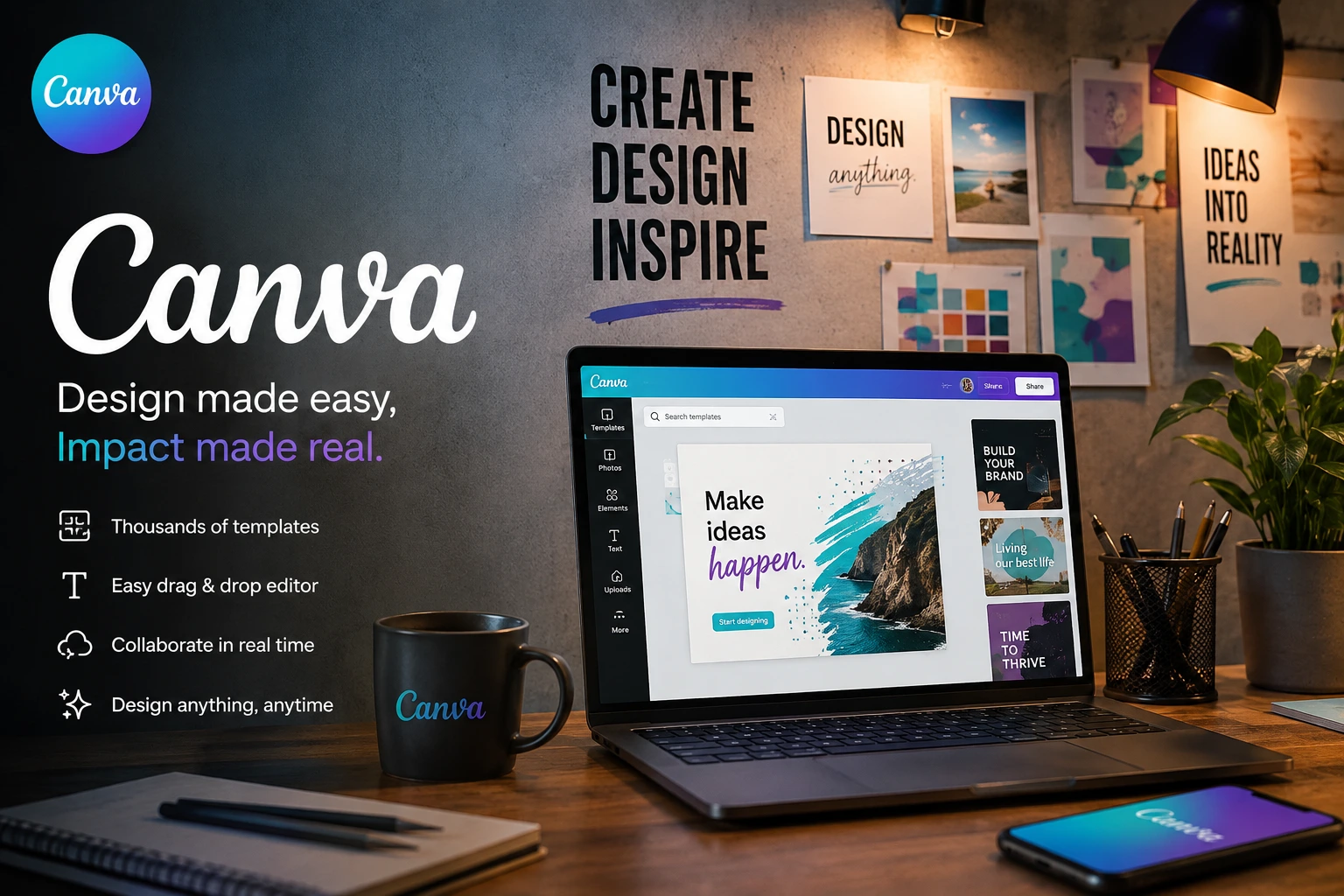
My Verdict: Canva is my strongest personal recommendation for fast, polished design, thumbnails, presentations, and social-media graphics.
5. VIMAGE: First-hand Experience
VIMAGE is different from a normal video editor. I have used it for a long time to add controlled movement to otherwise static images. It was particularly useful to me before AI creative tools became such a large part of my workflow.
I have used it to introduce movement into skies, fog-like effects, and other elements of an image. The idea is simple: take a still picture and make it feel more alive without turning the application into a complete video-production suite.
I still sometimes use this kind of workflow when an AI tool does not produce the exact movement I want. Manual control can be useful when I want a specific visual result. The current VIMAGE website also describes photo animation and animated output options such as MP4, MOV, and GIF.
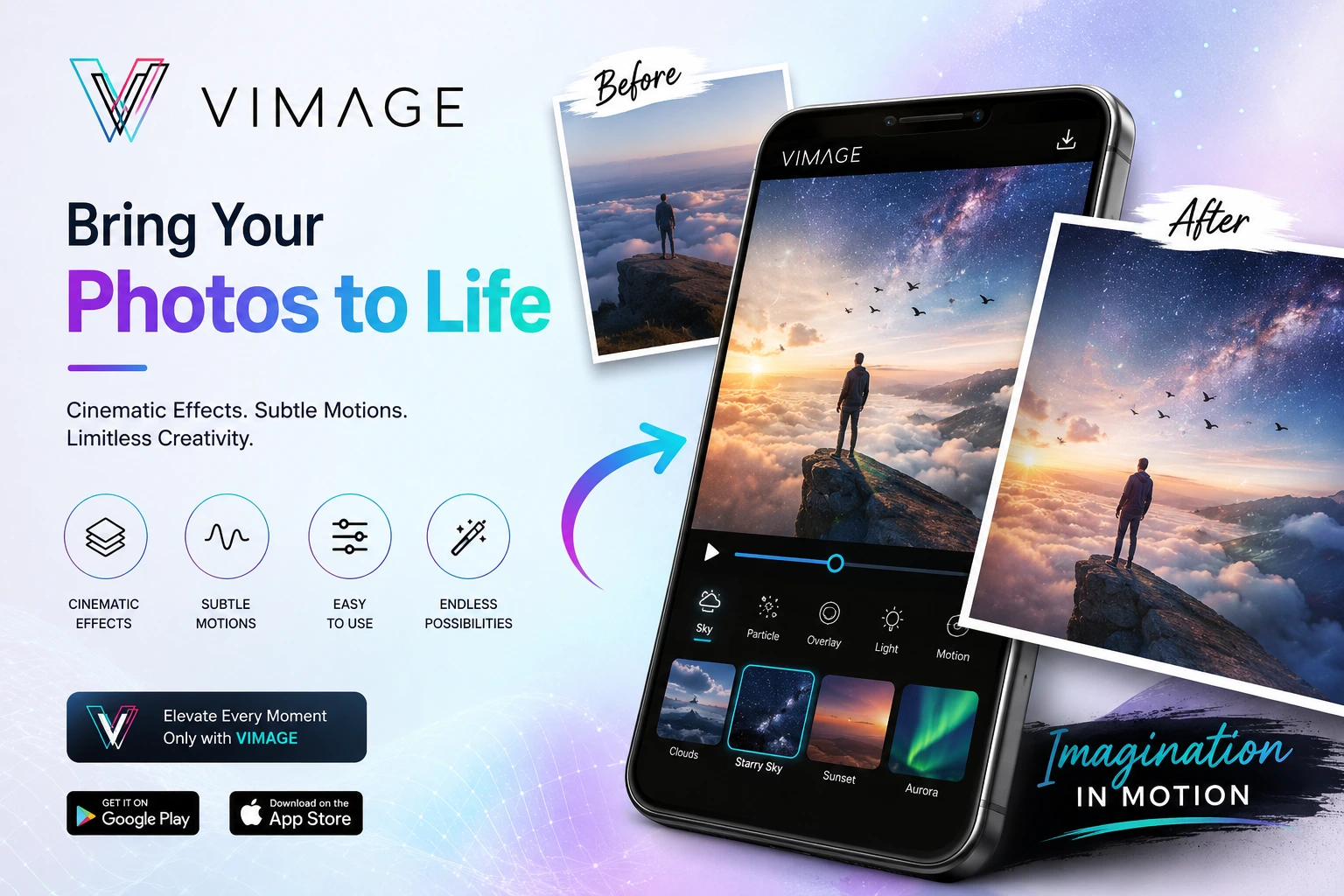
My Verdict: VIMAGE is best understood as a specialised tool for animating still images rather than a replacement for a complete video editor.
6. CapCut: Mobile, Desktop, and Online Video Editing
CapCut is a creator-focused editing platform with strong short-form and social-video positioning. Its official materials highlight templates, transitions, filters, colour correction, background removal, transcription, and AI-assisted tools. It also offers online editing workflows.
Who Should Consider It ?
• Short-form creators
• Social-media editors
• Beginners who want templates and fast effects
• Creators interested in AI-assisted editing
Limitations and Considerations
• Large feature set can feel busy
• Some features vary by region or product version
• Current pricing and feature availability should be checked before publication
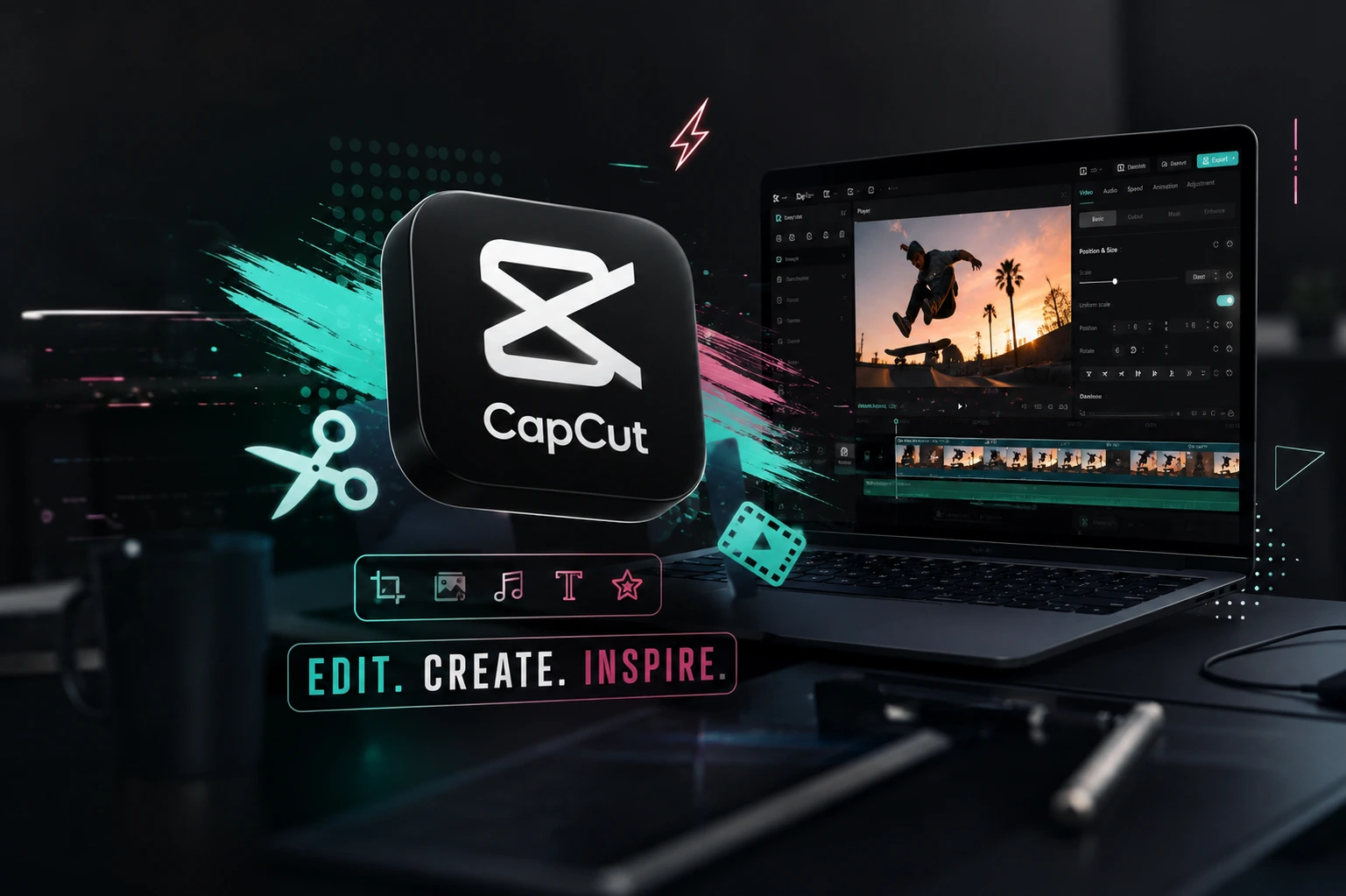
Editorial Verdict: Strong when speed, templates, creator effects, and AI-assisted workflows matter.
7. DaVinci Resolve: Professional Post-Production
DaVinci Resolve combines editing, colour correction, Fusion visual effects and motion graphics, Fairlight audio, and media management in one application. Blackmagic Design currently presents Resolve as an all-in-one professional post-production solution, with both a free version and a paid Studio version.
Who Should Consider It ?
• Advanced YouTube creators
• Filmmakers
• Editors and colourists
• Users moving towards professional post-production
Limitations and Considerations
• Steeper learning curve
• Complex projects demand strong hardware
• Advanced capabilities are reserved for Studio
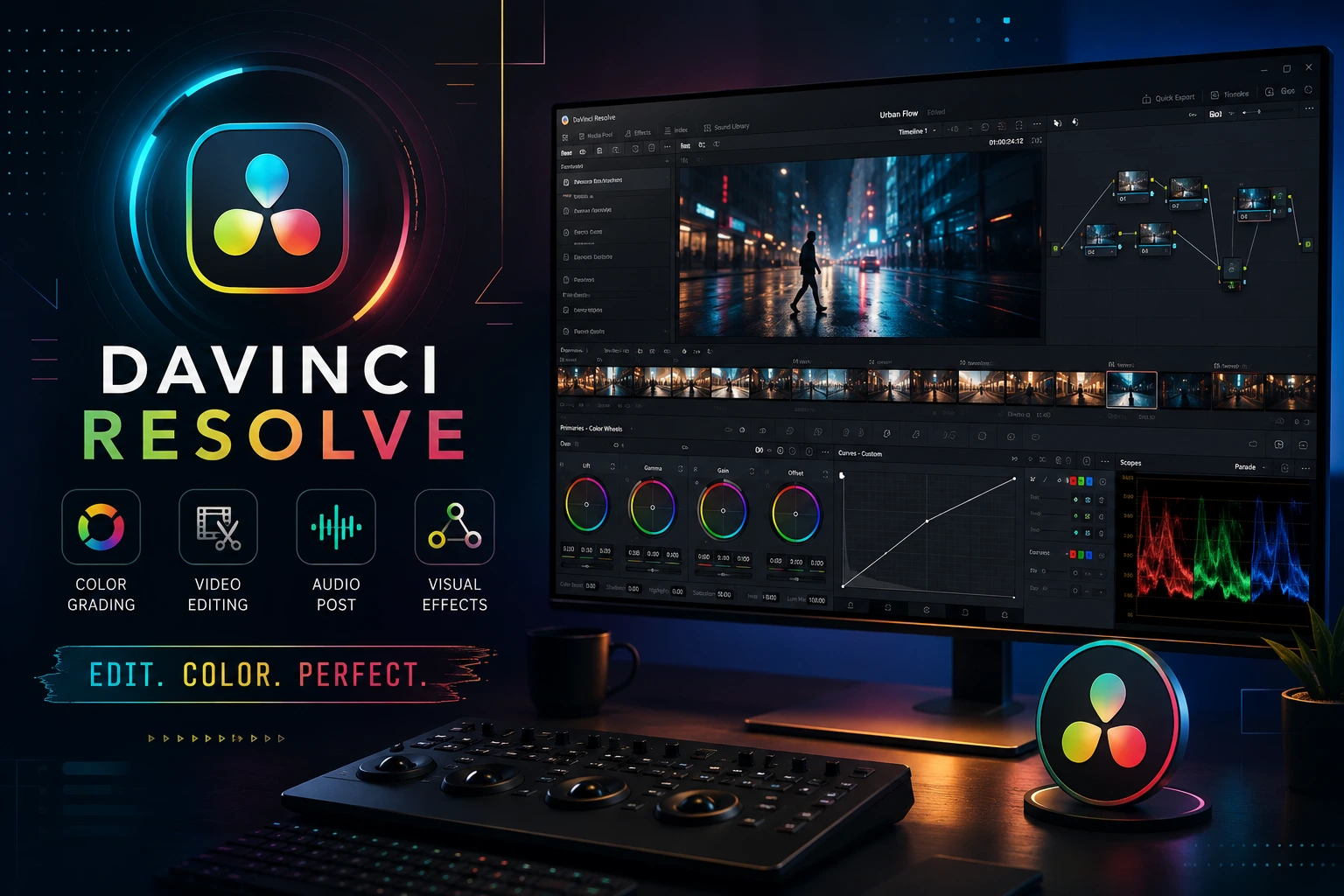
Editorial Verdict: One of the strongest choices when editing becomes a serious professional post-production workflow.
8. GIMP: Free and Open-Source Image Editing
GIMP is a free and open-source image editor for GNU/Linux, macOS, Windows, and other systems. Its official project describes it as suitable for designers, photographers, illustrators, and other users, with customisation and third-party plugin support.
Who Should Consider It ?
• Photographers
• Graphic designers
• Illustrators
• Users seeking free/open-source desktop image editing
Limitations and Considerations
• More learning required than simple mobile editors
• Primarily raster/image focused
• Workflow may feel unfamiliar to beginners
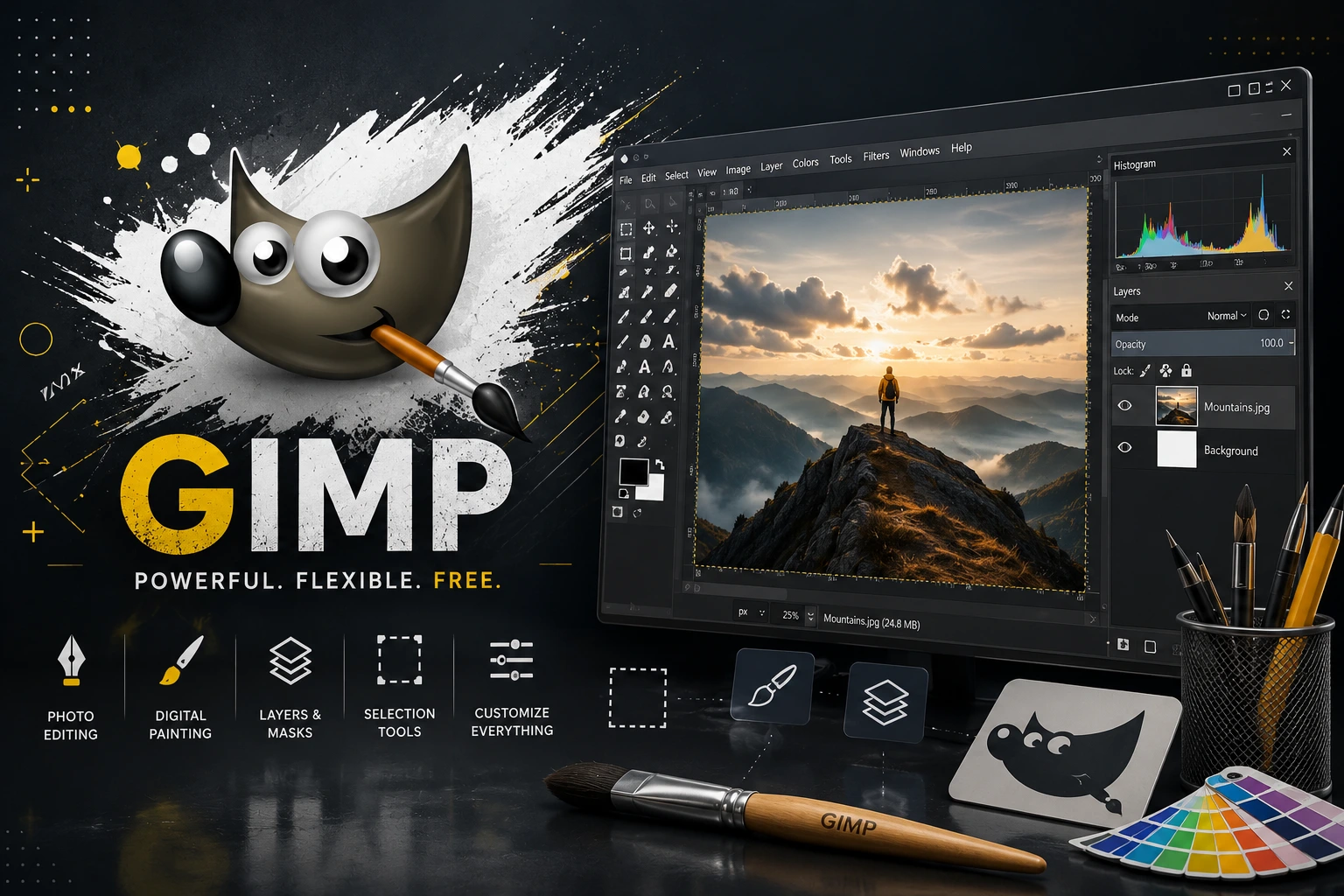
Editorial Verdict: An excellent option for users who want powerful free desktop raster editing.
9. Photopea: Browser-Based Image Editing
Photopea is an advanced browser-based image editor that supports raster and vector graphics. Its official documentation explains that it can work with PSD as its main working format and can operate locally on the user's device, including offline after loading.
Who Should Consider It ?
• Students
• Creators without software installation rights
• PSD users
• People needing layered browser editing
Limitations and Considerations
• Browser/device performance matters
• Advanced workflows still require learning
• Very large projects may be less comfortable than desktop software
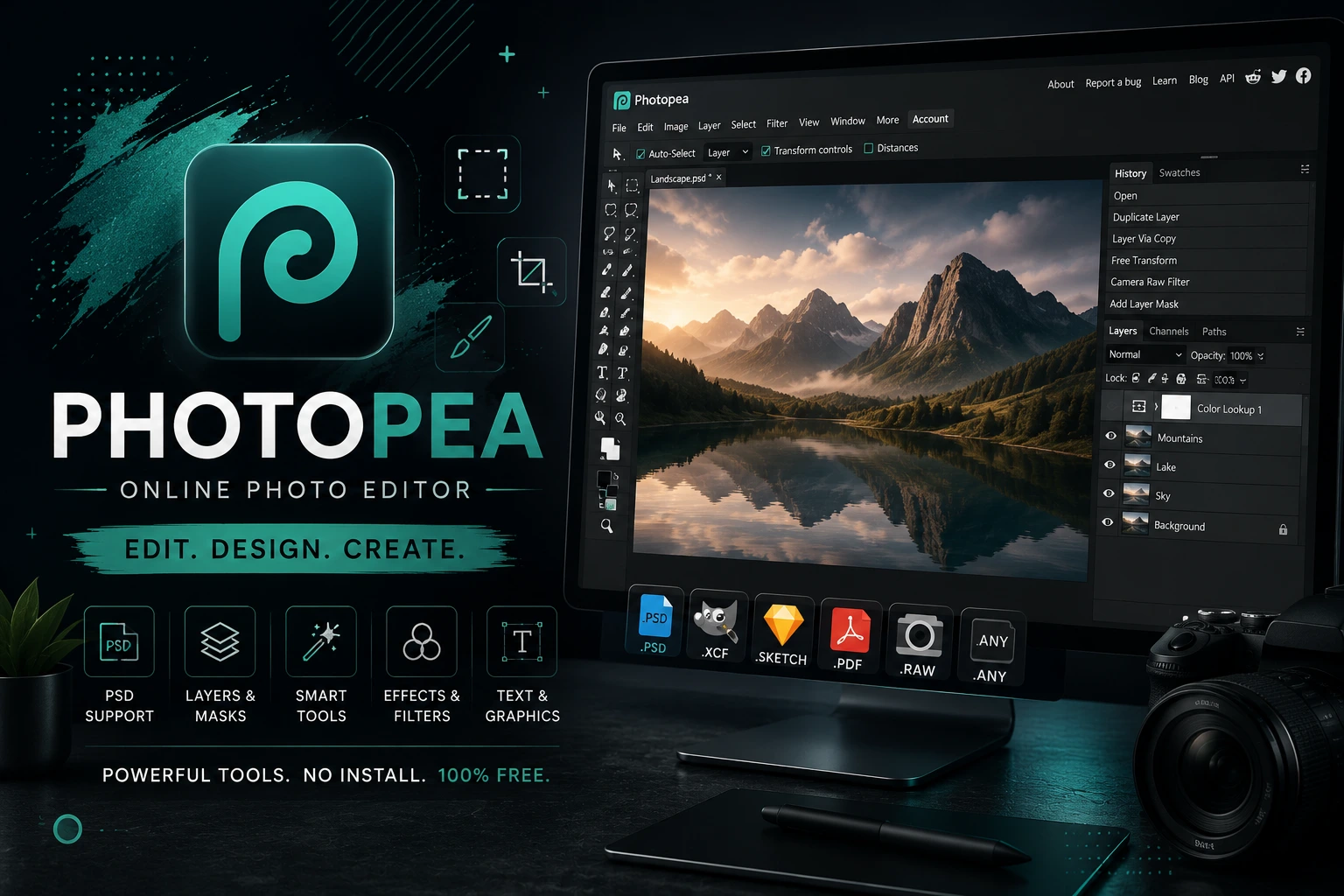
Editorial Verdict: Especially useful when serious image editing is needed without installing desktop software.
10. OBS Studio: Screen Recording and Live Production
OBS Studio is primarily a recording and live-streaming application. Official documentation centres on scenes, sources, filters, audio, recording, and streaming. It can capture displays, windows, games, webcams, and capture devices.
Who Should Consider It ?
• YouTubers
• Gamers
• Tutorial creators
• Streamers
Limitations and Considerations
• Not a conventional video editor
• Many settings can overwhelm beginners
• Encoder, FPS, resolution, and audio settings require careful tuning
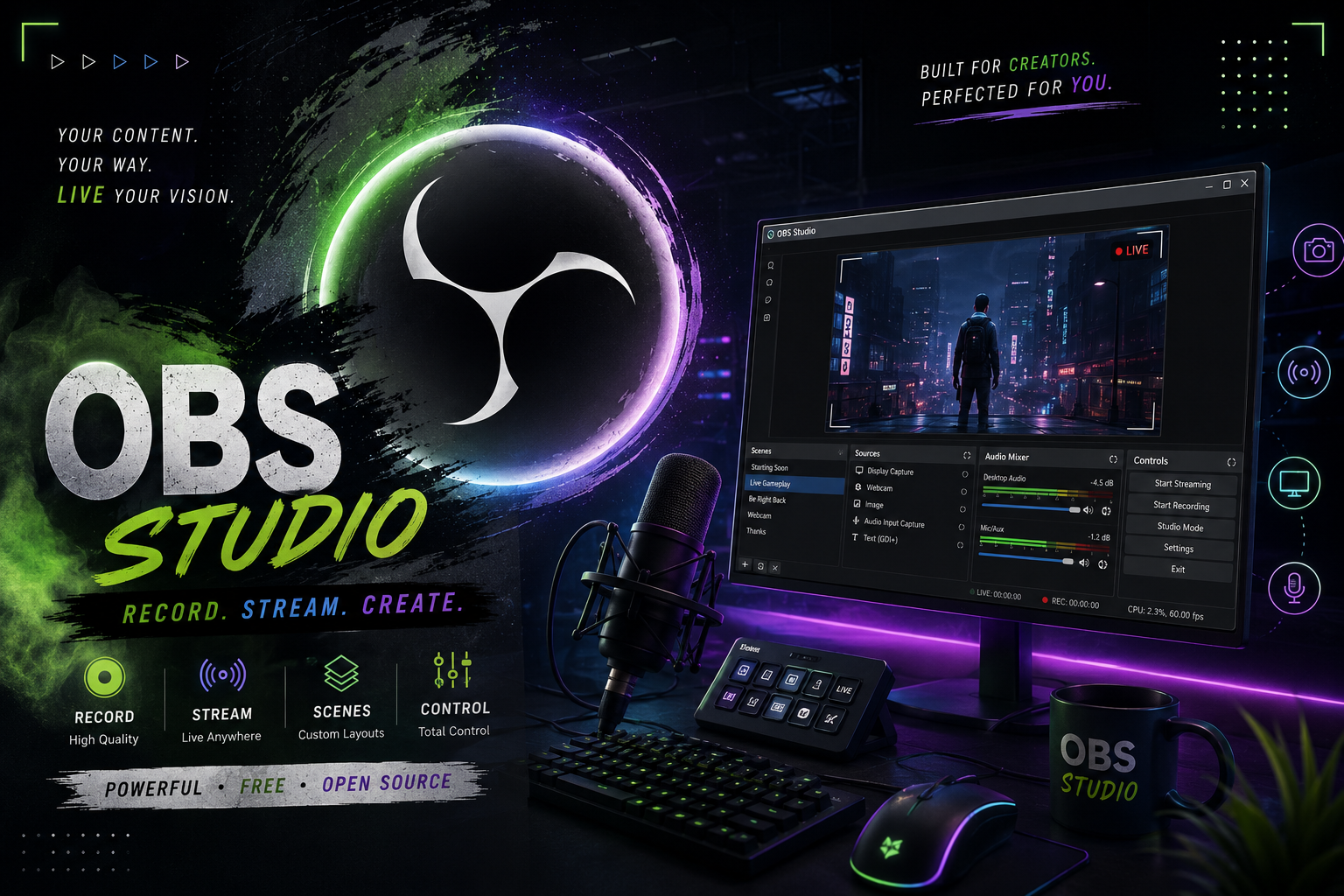
Editorial Verdict: One of the best tools for creating the raw screen, gameplay, or tutorial footage that another editor can finish.
11. Audacity: Audio Recording and Editing
Audacity is a free and open-source multi-track audio editor and recorder. Official materials list recording, cutting, mixing, noise reduction, pitch and speed changes, effects, and broad support for common audio formats.
Who Should Consider It ?
• Podcasters
• YouTubers
• Students
• Voice and audio hobbyists
Limitations and Considerations
• Focused on audio rather than video
• Advanced sound work requires practice
• Users should avoid confusing official Audacity with unofficial mobile clones
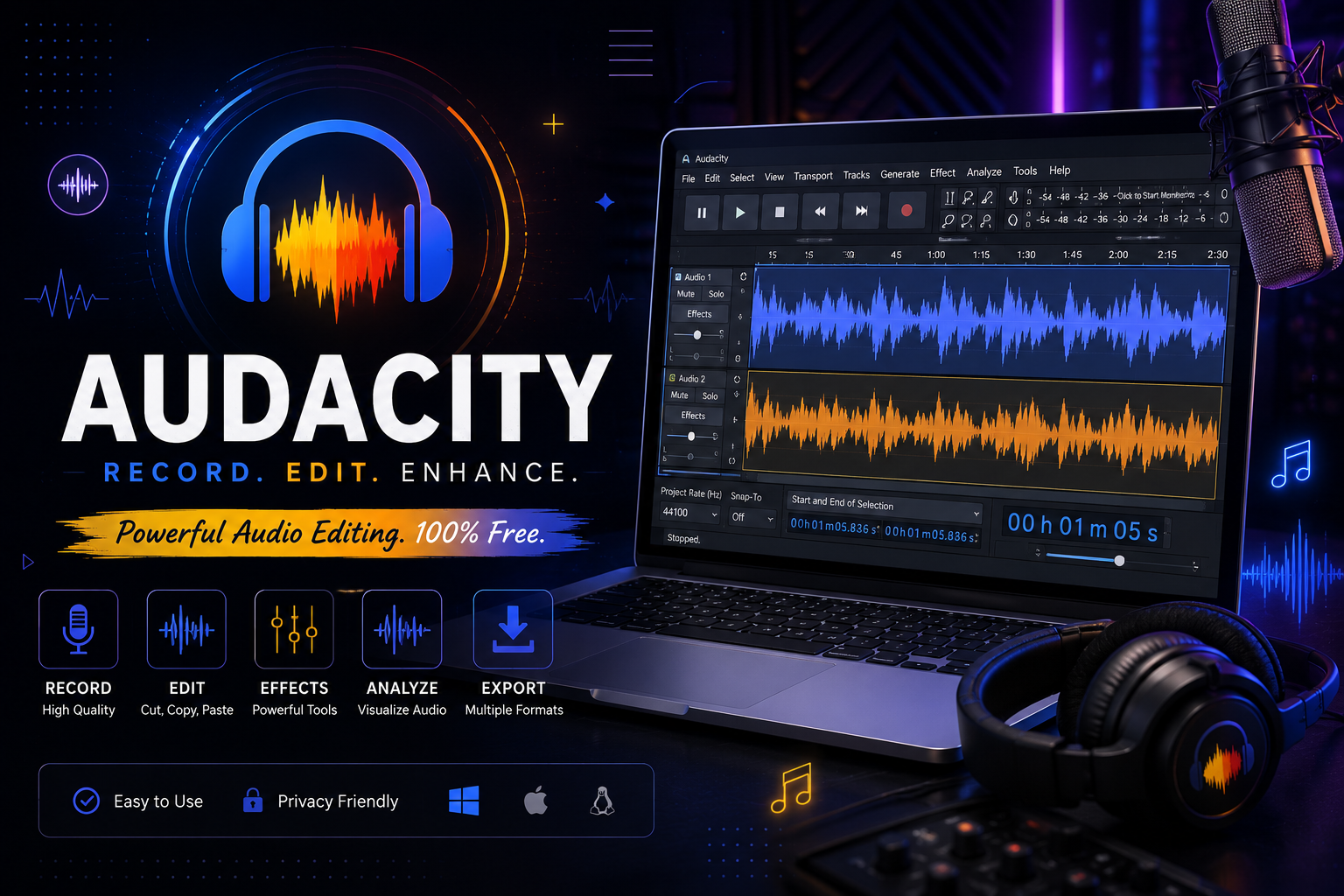
Editorial Verdict: An excellent companion when the video is fine but the voice or overall audio needs work.
12. OpenShot: Beginner-Friendly Open-Source Video Editing
OpenShot is a free and open-source video editor for Linux, macOS, ChromeOS, and Windows. Its documentation lists timeline editing, keyframes, effects, chroma key, colour tools, masks, titles, and basic audio mixing.
Who Should Consider It ?
• Beginners
• Students
• Open-source users
• Creators making straightforward desktop projects
Limitations and Considerations
• Less specialised than professional NLEs
• Large projects can still demand capable hardware
• Advanced features require manual practice
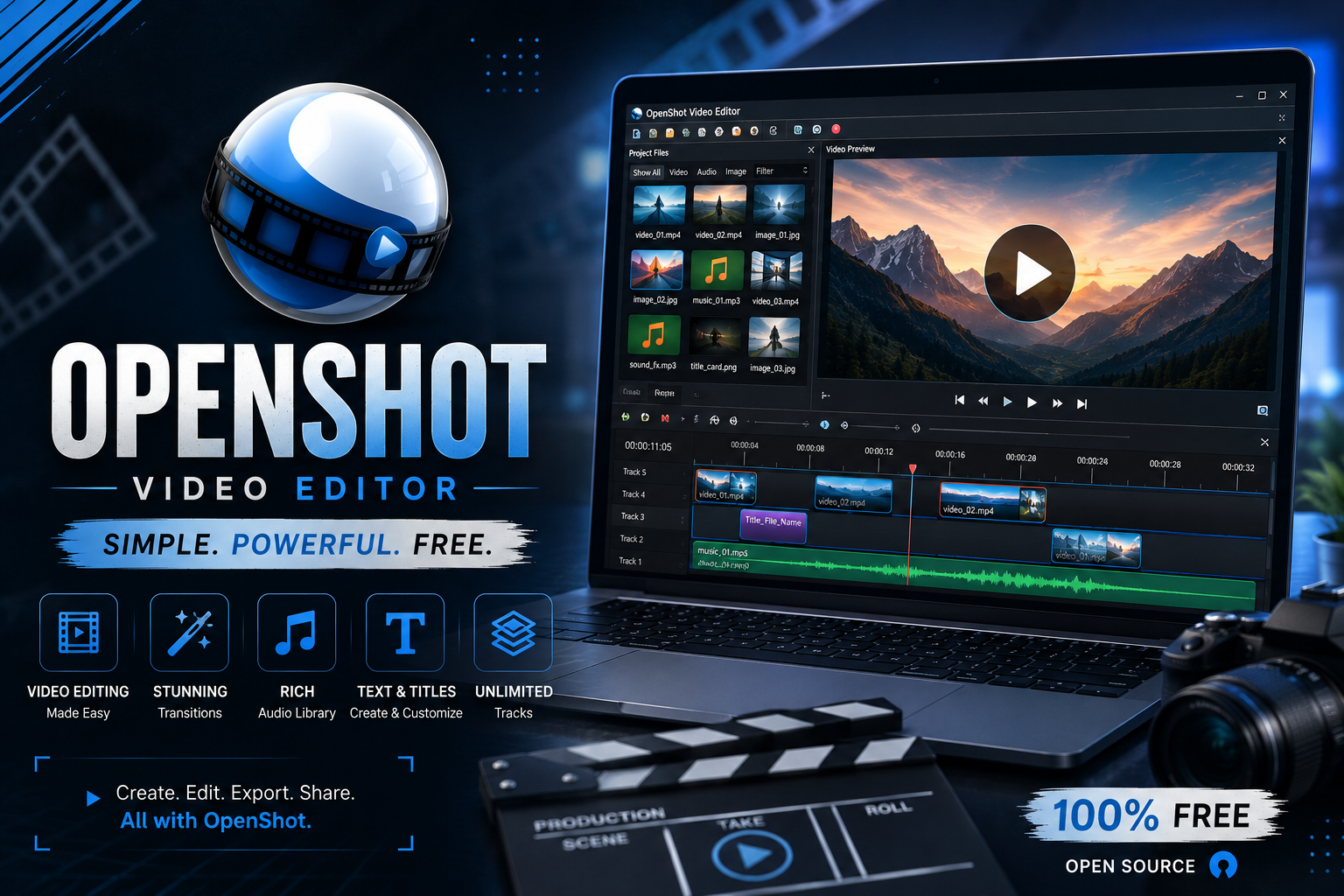
Editorial Verdict: A sensible entry point for free, uncomplicated desktop video editing.
13. Krita: Digital Painting and 2D Art
Krita is a free digital painting application. Its official feature pages highlight customisable workspaces, brushes, stabilisers, layers, animation tools, colour management, PSD support, HDR painting, and scripting.
Who Should Consider It ?
• Digital artists
• Illustrators
• Concept artists
• Comic and 2D animation creators
Limitations and Considerations
• Not a general video editor
• Painting workflow has a learning curve
• Best suited to digital art rather than ordinary photo retouching
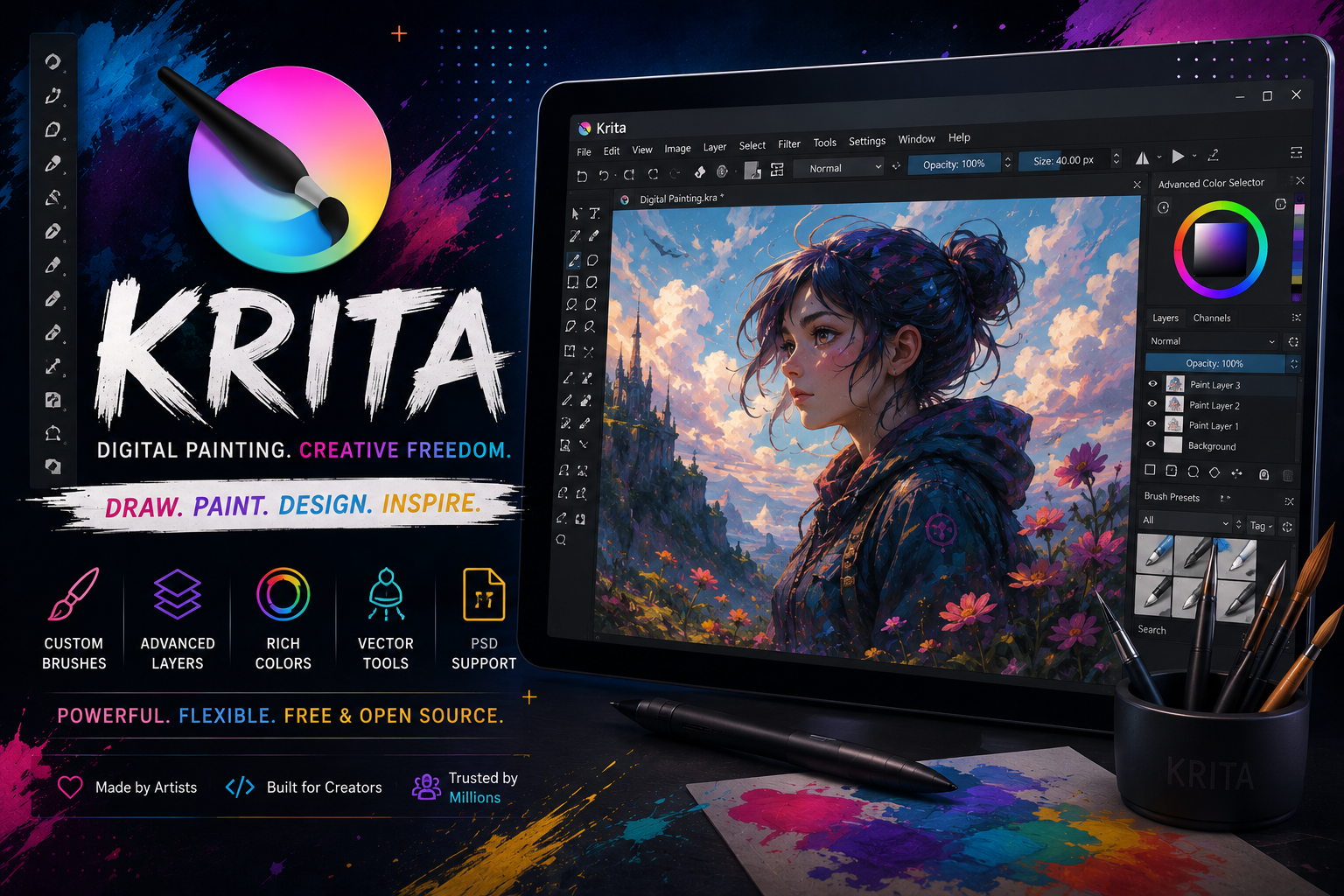
Editorial Verdict: The strongest fit in this list when the project is drawing, painting, illustration, or 2D art.
14. Inkscape: Vector Graphics
Inkscape is a free and open-source vector graphics editor. Official documentation explains that vector artwork can be scaled without the pixelation associated with raster graphics. It is used for logos, typography, illustrations, diagrams, and technical graphics, with SVG as its main format.
Who Should Consider It ?
• Logo designers
• Illustrators
• Diagram creators
• Users needing clean, scalable graphics
Limitations and Considerations
• Vector concepts differ from photo editing
• Paths and nodes require practice
• Not a conventional video editor
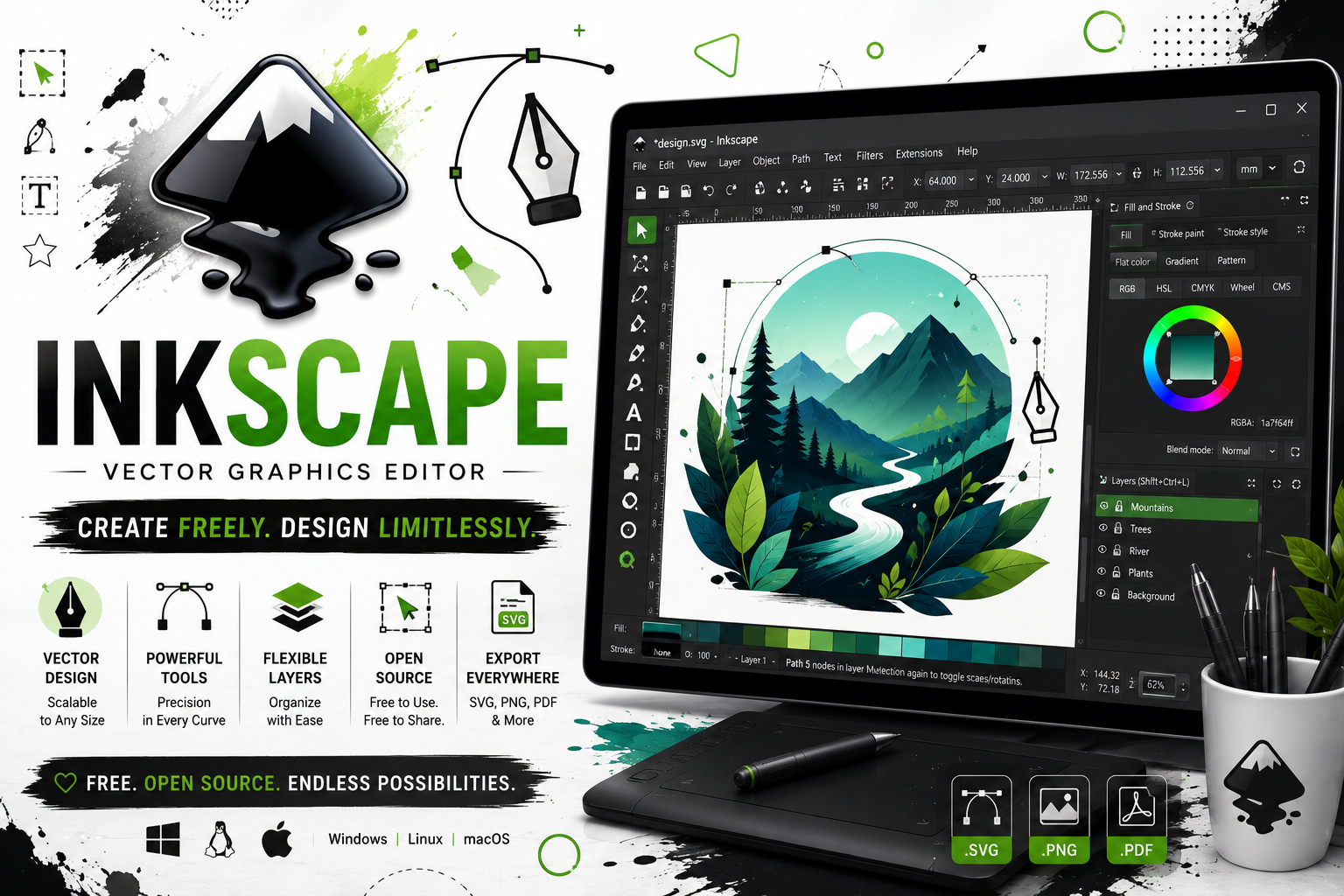
Editorial Verdict: The right choice when scalable, object-based graphics matter.
15. Kdenlive: Open-Source Multi-Track Video Editing
Kdenlive is a free video editor built around KDE technologies. Its documentation lists multi-track editing, broad format support through FFmpeg, 3-point editing, effects, keyframes, subtitles, proxy editing, and configurable workspaces. It also documents speech-to-text subtitle workflows.
Who Should Consider It ?
• Linux users
• Open-source advocates
• Intermediate editors
• Desktop creators
Limitations and Considerations
• More complex than mobile editors
• Linux remains a major focus
• Advanced projects require dedicated learning
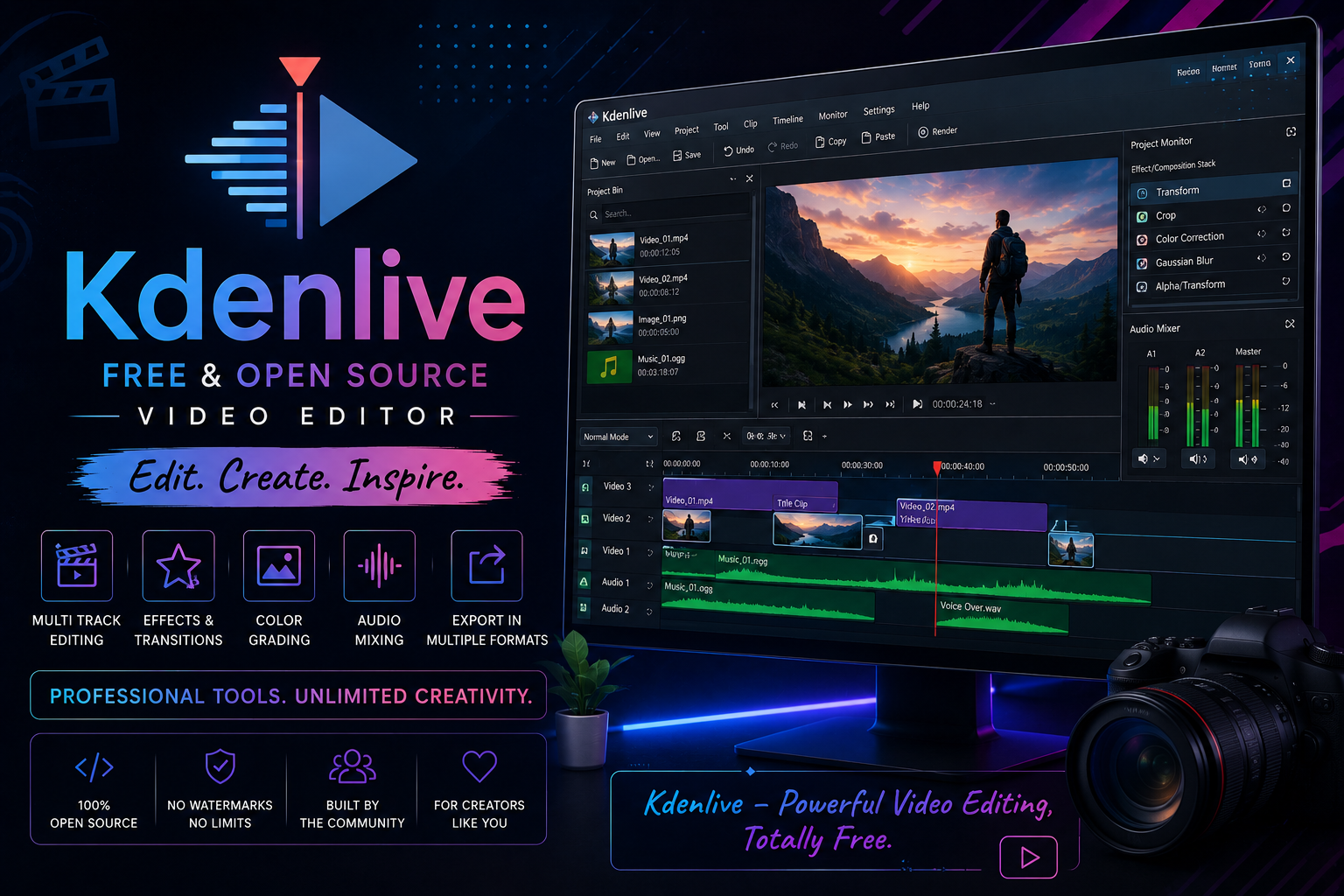
Editorial Verdict: A compelling open-source option for genuine multi-track desktop video editing.
Quick Comparison & My Personal Shortlist
The most useful comparison is by job rather than by one universal score. A vector editor should not be judged as a failed video editor; it should be judged by whether it solves the vector problem well.
Speed & Layers
InShot: Best for rapid, simple reels.
KineMaster: Multi-layer mobile power.
PicsArt: Quick cutout and image styling.
Power & Precision
DaVinci Resolve: Pro grade color & NLE.
GIMP / Photopea: Serious raster editing.
Kdenlive: Multi-track open-source pipeline.
From the tools I have personally used, my choice depends on the job: InShot for quick mobile video editing, KineMaster for deeper mobile layer control, PicsArt for creative image editing, Canva for fast polished design and presentations, and VIMAGE when I want to add movement to a still image.
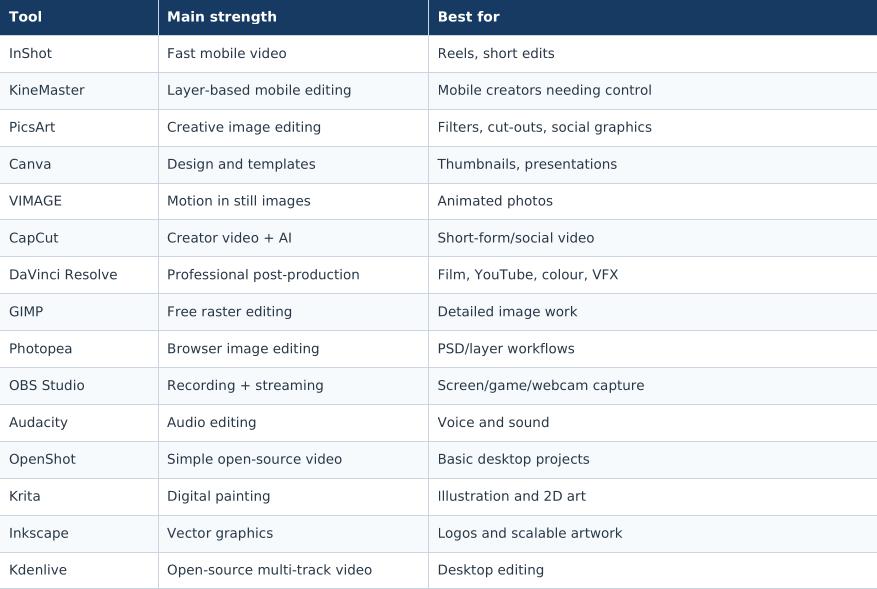
For the tools I have not personally used extensively, I prefer to explain their documented strengths instead of inventing first-hand opinions. That is an important part of keeping this article honest.
A Note About Unofficial or Modified Applications
I am including my experience with unofficial modified editing applications because the personal story should remain transparent. However, I do not recommend these builds and I do not treat them as equivalent to official releases.
During my experimentation I encountered behaviour such as unwanted redirects and pop-ups, and unofficial builds can also differ in features, stability, advertising behaviour, and security. A modified package may contain changes that an ordinary user cannot easily inspect or verify.
Use the developer's official website or an official app store whenever possible. If an official product places a feature behind a paid plan, an unofficial unlocked build should not automatically be considered a safe alternative. This article documents past experimentation but does not provide download links or instructions for pirated or modded software.
How to Choose the Right Tool
• Quick mobile video: InShot, KineMaster, or CapCut.
• Thumbnails and presentations: Canva or PicsArt.
• Animated still images: VIMAGE.
• Professional desktop video: DaVinci Resolve.
• Free desktop image editing: GIMP.
• Browser-based layered editing: Photopea.
• Screen/gameplay recording: OBS Studio.
• Voice/audio cleanup: Audacity.
• Simple open-source video editing: OpenShot.
• Digital painting: Krita.
• Logos and scalable graphics: Inkscape.
• Open-source multi-track video: Kdenlive.
Final Verdict
There is no single editing application that replaces all 15 tools. The biggest lesson from using these tools is that convenience and capability are different things. InShot and Canva can be extremely effective because they make common tasks easy. KineMaster provides deeper mobile control. PicsArt is strong for creative images. VIMAGE has a specialised purpose.
Desktop tools such as DaVinci Resolve, GIMP, Kdenlive, Krita, and Inkscape become more valuable when a project needs greater control or a different creative workflow.
I also no longer judge software only by the number of effects or premium features. I care about whether I can understand the interface, whether it fits my hardware, whether it saves time, and whether I can trust the version I install.
The goal of this guide is not to manufacture a single winner; it is to help you choose the right tool for the specific job.
Frequently Asked Questions
Is Canva better than traditional presentation software ?
For my workflow, Canva is easier and faster for many presentation tasks because of its templates and drag-and-drop design. That is a personal preference, not a universal rule.
Is DaVinci Resolve suitable for beginners ?
Yes, it can be learned by beginners, but its professional depth creates a much steeper learning curve than mobile-first editors.
Is GIMP free ?
Yes. The official GIMP project describes it as free and open-source software.
Can Photopea edit PSD files ?
Yes. Photopea uses PSD as its main working document format and can export common graphic formats.
Is OBS Studio a video editor ?
Not primarily. It is designed for recording and live production; the captured material can then be edited in another application.
Should I use modded editing apps ?
I do not recommend them. My own experimentation reinforced the uncertainty, potential instability, and security/privacy concerns that come with unofficial builds.